Published 2026-10-11 · Updated October 11, 2026 · 7 min read
Extract Text from a Mixed PDF: Digital Pages, Scans and Missing OCR
Use native extraction first, then enable OCR every PDF page when a readable heading hides image text below it. Try the public mixed-page example and compare the transcript.

Written & Maintained by Haaris Saifi
Founder & Systems Architect • Editorial & Testing Governance
Try this operation in your browser
100% private, client-side processing with zero server uploads.
Try it with public examples
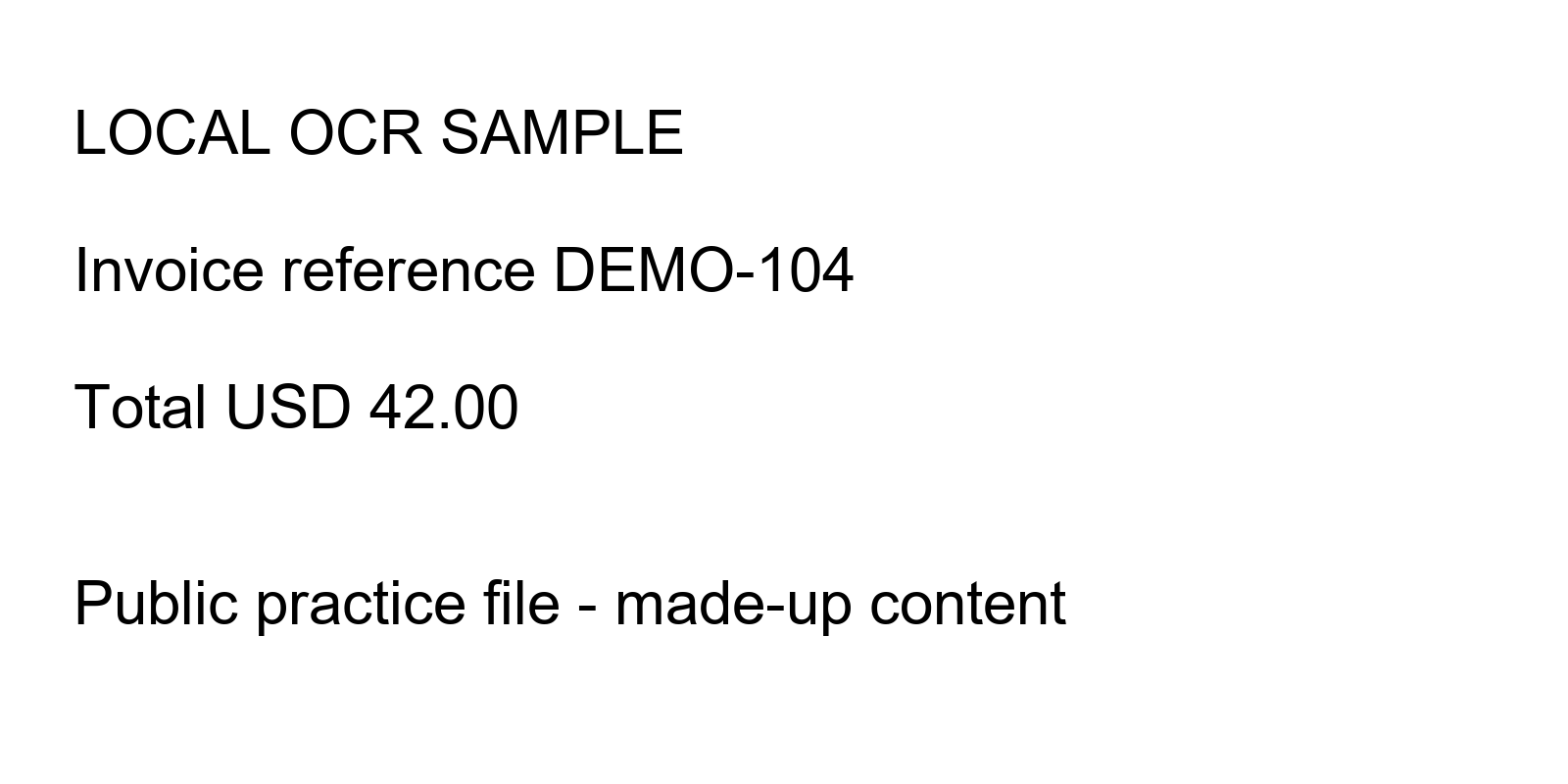
These files contain made-up demonstration content, not customer documents. Keep the original and compare your downloaded result.
Practical guide
Use the workflow below, then check the linked primary sources for requirements that apply to your situation.
1Why a mixed PDF can produce an incomplete transcript
2Test the difference with a public mixed-page PDF
3Decide whether you need plain text or a searchable PDF
4Improve the scan before increasing OCR work
5Use smaller batches and recover cleanly from failures
6Review names, numbers and search results separately
7Check what stays local and report problems safely
Why does extraction return a heading but miss scanned text below it?
The heading can make a page appear to have native text. Enable OCR every PDF page to recognize the rendered image content too, then review the result.
Does this tool create a searchable PDF?
No. It exports an editable plain-text transcript. A searchable PDF requires a separate workflow that writes an OCR text layer into a PDF.
Can I rely on unreviewed OCR for financial or legal records?
No. Recognition can change critical characters or associations. Compare identifiers, amounts and quotations with the original.
Primary sources and technical references
- Tesseract.js recognition and worker API — Tesseract.js maintainers
- PDF.js document rendering examples — Mozilla PDF.js
- Improving OCR image quality — Tesseract OCR project
Maintained by MultiPDF Doc · Updated October 11, 2026. Editorial policy · Report a correction